PC Slowdown Explained
Ever wonder why your once lightning-fast PC now feels like it's stuck in quicksand? Let's break down why your PC slows down over time and what you can do about it.

By Marcus Liu
It’s a tale as old as time: you buy a shiny new PC, and for the first few months, it’s a dream. Programs open instantly, games run smoothly, and everything just works. But then, slowly but surely, the performance starts to dip. Apps take longer to load, boot times increase, and you find yourself staring at the spinning wheel of doom more often than you'd like. So, what gives? Why does your PC slow down over time?
There are several culprits behind this frustrating phenomenon, and the good news is that most of them are fixable. Let’s dive into the most common reasons your PC is losing its edge and how you can bring it back to life.
1. Software Bloat: The Silent Killer
One of the biggest reasons your PC slows down is software bloat. Over time, as you install more programs, they often come with extra baggage—background processes, services, and startup items that run without you even knowing. These can hog your system’s resources, leaving less for the tasks you actually care about.
Solution? Start by reviewing your startup programs. On Windows, you can do this by opening Task Manager (Ctrl+Shift+Esc), heading to the “Startup” tab, and disabling anything unnecessary. You’d be surprised how much faster your PC can boot when it’s not trying to load a dozen apps at once.
2. Fragmented Hard Drives (Yes, It Still Happens)
If you’re still rocking a traditional hard drive (HDD), fragmentation could be a major reason for your PC’s sluggishness. Over time, as files are written and deleted, they can become scattered across the drive, making it harder for your system to access them quickly.
While modern SSDs don’t suffer from fragmentation in the same way, HDDs still do. The fix? Run a disk defragmentation tool. Windows has a built-in one—just search for “Defragment and Optimize Drives” in the Start menu and follow the prompts.
3. Lack of Storage Space
Running low on disk space can also cause your PC to slow down. When your drive is nearly full, your system doesn’t have enough room to create temporary files or swap data in and out of memory efficiently. This can lead to slower performance across the board.
To free up space, consider uninstalling programs you no longer use, deleting old files, or moving large files (like videos or games) to an external drive. You can also use tools like Windows’ built-in Disk Cleanup to remove temporary files and other junk.
4. Outdated Hardware
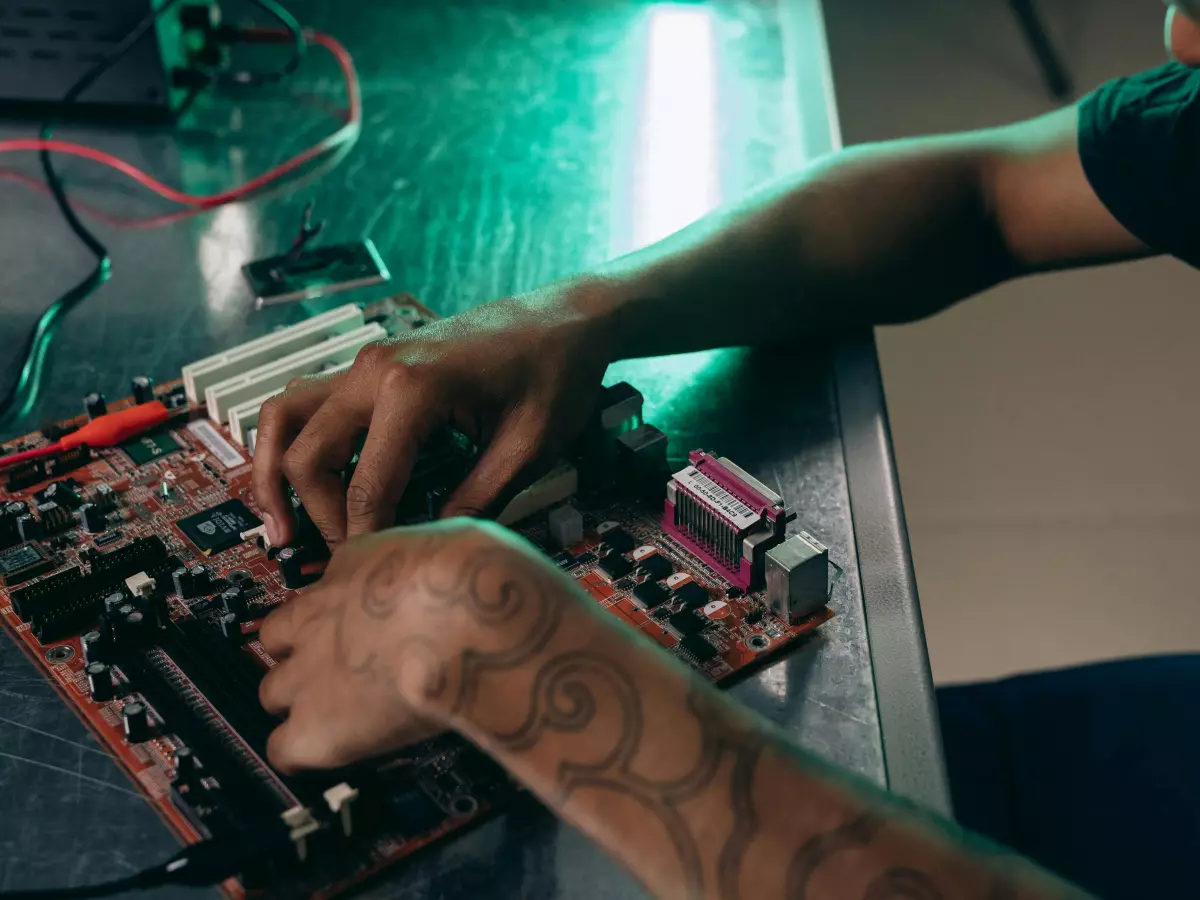
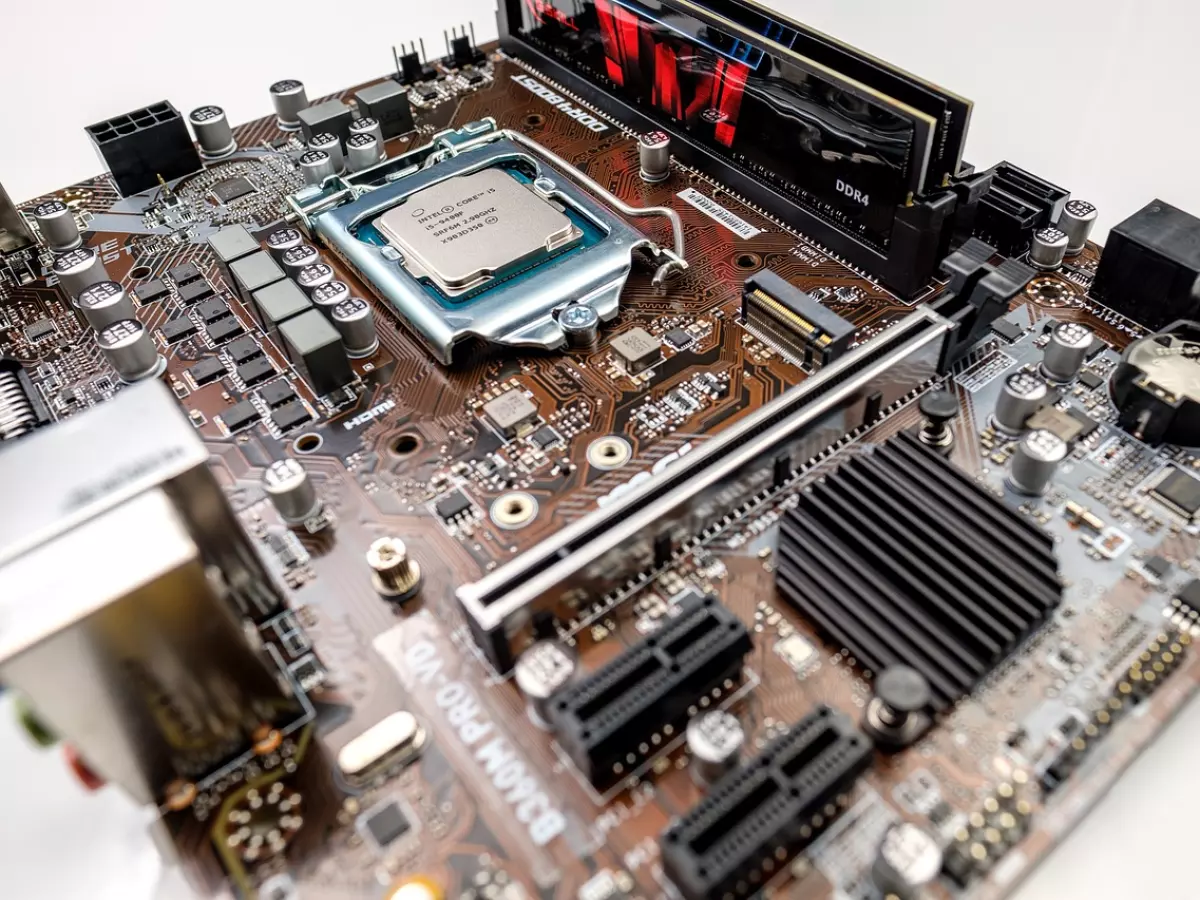
Sometimes, the issue isn’t software-related at all—it’s your hardware. If you’re running an older PC, your CPU, GPU, or RAM might simply not be able to keep up with modern software demands. This is especially true if you’re trying to run resource-intensive applications like video editing software or the latest AAA games.
In this case, upgrading your hardware might be the best solution. Adding more RAM, upgrading to an SSD, or even swapping out your CPU or GPU can breathe new life into an aging system.
5. Overheating: The Hidden Enemy
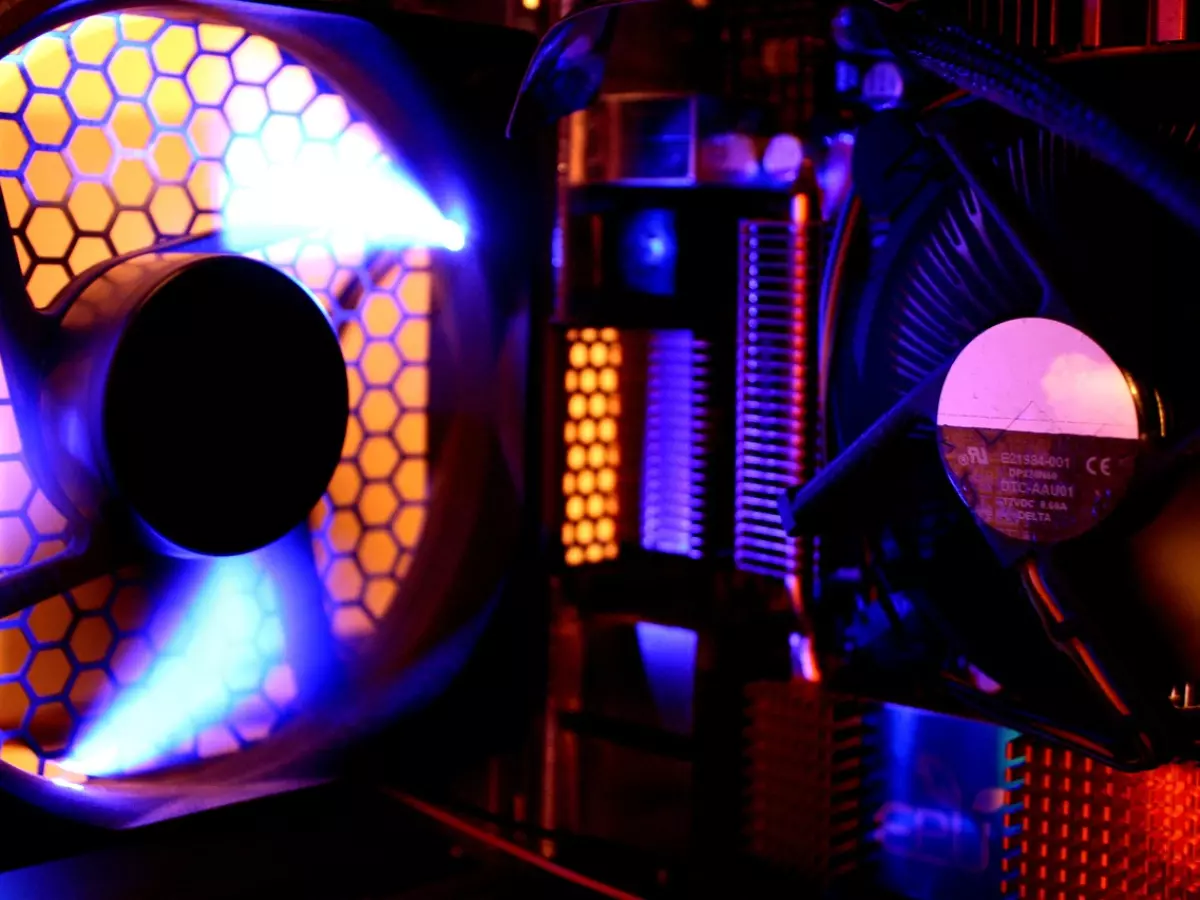
Heat is the enemy of performance. If your PC is overheating, it will throttle its performance to prevent damage. This can result in slower speeds, crashes, and even system shutdowns.
Make sure your PC is well-ventilated and that dust isn’t clogging up your fans. You can also monitor your system’s temperature using tools like HWMonitor or Core Temp. If overheating is an issue, consider investing in better cooling solutions, like additional fans or a more efficient CPU cooler.
6. Malware and Viruses
It’s 2023, and malware is still a thing. If your PC is infected with malware or viruses, it can significantly slow down your system. These malicious programs often run in the background, using up valuable resources and causing performance issues.
Make sure you have a reliable antivirus program installed and run regular scans. If you suspect your PC is infected, take immediate action to remove the malware and restore your system’s performance.
7. Operating System Updates (Or Lack Thereof)
Finally, keeping your operating system up to date is crucial for maintaining performance. Updates often include performance improvements, bug fixes, and security patches that can help your PC run more smoothly.
On the flip side, if you’re running an outdated OS, you might be missing out on these optimizations. Make sure you’re running the latest version of your operating system, whether it’s Windows, macOS, or Linux.
Final Thoughts: Keep Your PC Running Smoothly
So, there you have it—seven common reasons why your PC might be slowing down and how to fix them. Whether it’s software bloat, fragmented drives, or outdated hardware, there’s usually a solution to get your machine back up to speed.
Remember, regular maintenance is key. Keep your software updated, clean out unnecessary files, and monitor your hardware’s health to ensure your PC stays in tip-top shape for years to come.